Writing user docs
How to extend the end-user documentation tree under website/docs/users/. This is the style guide for the docs that contributors write — different from Documentation, which covers the Docusaurus site mechanics.
The user-doc tree was planned in PLAN: User documentation. Read that for the information architecture and the worked example at users/public-registration.md.
Audience
| Audience | Where they live | Language |
|---|---|---|
| End users (volunteers, staff) | website/docs/users/ | Norwegian |
| Contributors (developers extending Railway) | website/docs/contributors/ (this folder) | English |
| AI coding assistants | website/docs/ai-developer/ | English |
End-users have never seen the codebase. They know the Norwegian-language admin UI, the public registration form, and not much else. When you write for them, assume the screen in front of them is the only ground truth.
Voice (Norwegian)
- "Du" — friendly-formal second person. Never "De" (too stiff), never "vi" (sounds like marketing). Direct address: "Du finner …", "Klikk på …", "Skjemaet viser …".
- Imperative for steps: "Klikk Neste." not "Klikkbar Neste-knapp finnes." Numbered lists for any sequence of actions.
- Present tense for descriptions: "Siden viser …" not "Siden vil vise …".
- Short sentences, one idea per sentence. Long compound Norwegian sentences are hard to skim.
- No code jargon in prose. Words like RPC, schema, JWT, RLS belong in the contributor docs, not user docs. If a user-visible concept needs a name, use the Norwegian label that appears in the UI (e.g. "Registreringer", "App-logg", "Mine tilganger").
- Quote UI labels verbatim, in
inline codeso they're searchable. Example: "Klikk på Send påmelding" — bold for the button label, or wrap a string in code formatting when quoting a Norwegian UI string verbatim (Antall registreringer).
If you're not a Norwegian speaker, write the page in English first as a draft, then ask a Norwegian-speaking maintainer to translate. Don't ship machine-translated Norwegian.
File layout
website/docs/users/
├── _category_.json                # sidebar label "Brukerguider"
├── index.md                       # audience landing (publikum vs admin)
├── public-registration.md         # standalone walkthrough — the worked example
├── admin/
│   ├── _category_.json
│   ├── index.md                   # admin audience landing
│   └── <role>.md                  # per-role hubs (full-admin, registrations-admin, …)
└── surfaces/
    ├── _category_.json
    └── <surface>.md               # per-screen reference
Two kinds of page exist under admin/:
| Kind | Lives at | Purpose | Length |
|---|---|---|---|
| Role hub | users/admin/<role>.md | "I logged in as X — what's my job?" | Short, ~300 words + thumbnails |
| Surface page | users/surfaces/<surface>.md | "What does this screen do?" | Full reference, all detail |
Role hubs link to the surface pages they cover. The surface pages are the single source of truth per screen — when a screen changes, you update the surface page once, not the five role hubs that mention it.
Per-role hub template
---
sidebar_position: <n>
---
# <Rollenavn> — <en-setning jobbeskrivelse>
## Slik logger du inn
Åpne `http://<host>/admin/login`. Klikk på **<Rollenavn>** i rollevelgeren.
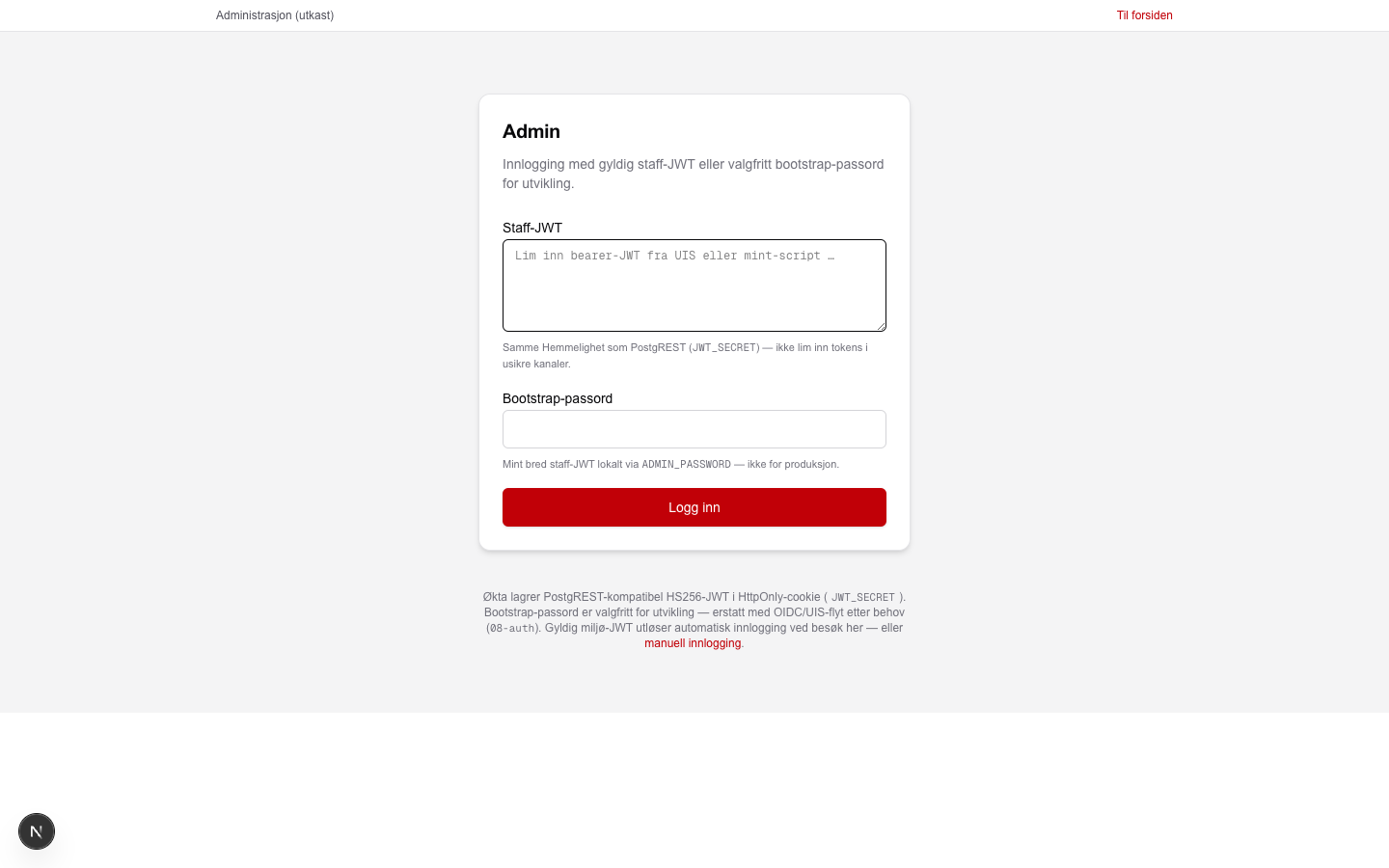
Du lander på `/admin`. Sidemenyen viser: **<liste over gruppe-navn>**.
## Hva du kan gjøre
For hver gruppe i sidemenyen denne rollen ser: én kort beskrivelse,
ett miniatyrbilde, og lenke til detaljsiden for hver flate.
### <Gruppenavn>
Kort beskrivelse av hva gruppen handler om.

→ [Detaljer](../surfaces/<surface>.md)
…
## Hva du **ikke** kan gjøre
Kort liste over kapabiliteter rollen mangler, og hvilken rolle som
har dem hvis du trenger den jobben. Eksempel:
> Du kan ikke redigere aktiviteter — JWT-en din mangler `content:read`.
> Bytt til rollen **Innholdsredaktør** hvis du trenger dette.
## Relatert
- [Slik logger du inn](../surfaces/login.md)
- [Mine tilganger](../surfaces/staff.md) — se hva JWT-en din inneholder
Per-surface page template
---
sidebar_position: <n>
---
# <Skjermnavn> — `/admin/<sti>`
**Hvem ser dette:** <liste over rollenavn>
**Krever kapabilitet:** `<cap-string>`

## Hva siden gjør
Én setning som forklarer formålet, og hvem som typisk bruker den.
## Hva du ser
Beskriv kolonner, filtre, knapper. Bruk de norske UI-tekstene
verbatim i `inline code`-formatering så leseren kan søke etter dem.
## Vanlige oppgaver
- **<Oppgave 1>**: nummererte steg. Eventuelt et nytt skjermbilde
som viser resultatet.
- **<Oppgave 2>**: …
## Fallgruver
Alt som er overraskende: tomme tabeller når kapabiliteten mangler,
validering som kan virke uforklarlig, kjente feil.
## Relatert
- Lenker tilbake til rolle-hubene som peker hit
- Lenker til relaterte detaljsider
Screenshot conventions
- Screenshots live at
website/static/img/screenshots/— that's both the capture output and what the docs site serves. Documented in Screenshots and video. Add a new screenshot in one place; no mirror step. - Filenames follow
rwg-{adm,pub}-<surface>.png. The slug (rwg-adm-overview) is also the natural alt-text fallback. - Embed syntax: standard markdown image —
. Docusaurus serves/static/at site root, so the path starts with/img/.... - Captions describe what the screenshot proves, not just what it shows. Bad: "Innloggingssiden". Good: "Innloggingssiden med rollevelgeren synlig — du klikker raden for rollen du vil logge inn som".
- Max display width is the Docusaurus content column (~720 px). The source PNGs are 1440 px wide (captured at viewport 1440×900 by
npm run docs:screens); the browser scales them. Retina users get a crisp render. - No raw
<img>tags for plain embeds — markdown is enough. Use<img>only when you need a custom width orloading="lazy"on a long page.
Adding a new role page
The fastest path is to copy public-registration.md (Phase 1's worked example) and adapt:
- Pick the role and the screenshots it needs. The Test of dummy login picker lists exact sidebar groups per role.
- Copy the template above into
users/admin/<role>.md. - Fill in the login section first (it's always the same shape — only the role name + cookie-payload claims change).
- For each visible sidebar group, write one paragraph + thumbnail + link to the surface page.
- Run
npm --prefix website run buildfrom the repo root.onBrokenLinks: 'throw'catches dead links to surface pages that don't exist yet.
Adding a new surface page
- Capture a screenshot via
npm run docs:screens(see Screenshots and video). Add a new entry to the script'sadminShotsarray if the surface is new. - Copy the surface template above into
users/surfaces/<surface>.md. - Cross-link from every role hub that includes this surface in its sidebar.
npm --prefix website run build.
What goes where — quick reference
| If you want to document … | Write it in |
|---|---|
| What a screen does and looks like | Surface page |
| What a role can do (overview) | Role hub |
| What a role cannot do and why | Role hub, "Hva du ikke kan" section |
| Step-by-step task in one screen | Surface page, "Vanlige oppgaver" |
| Step-by-step task across screens | Role hub if role-specific, else users/public-registration.md-style standalone |
| Why the data model looks the way it does | Contributor docs (postgres-roles.md), not user docs |
| How a JWT cap maps to RLS | Contributor docs, not user docs |
If you find yourself writing about JWTs or PostgreSQL roles in a user doc, stop and move that paragraph into a contributor doc with a link from where you removed it.
Related
- Documentation — Docusaurus site mechanics (frontmatter, MDX, navigation)
- Screenshots and video — how to capture and refresh assets
- PLAN: User documentation — the phased rollout this guide supports
- Test of dummy login picker — per-role functional spec, close cousin of the user docs